Katapult Firmware
Katapult Firmware Description
tip
- The Fly-D8 mainboard can only perform BL flashing via the Type-C USB interface.
- It comes pre-installed with the Katapult firmware by default.
Entering Flash Mode
tip
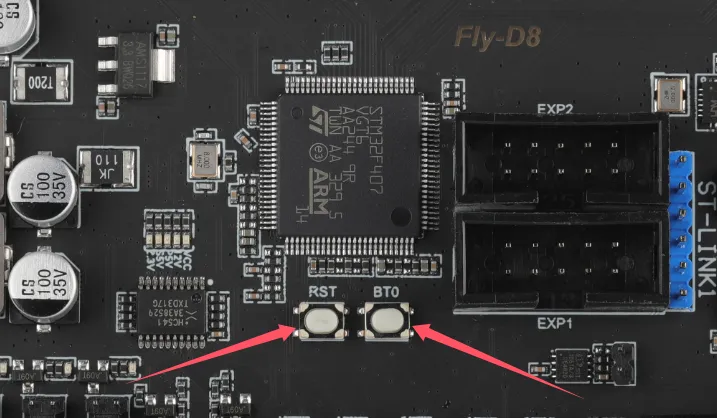
The left button is the RST button, and the right button is the BOOT button.
- There are two methods to enter flash mode.
- First method: With the tool board completely powered off, hold the BOOT button, then connect a data-capable TYPE-C cable from the mainboard to your device.
- Second method: After connecting a data-capable TYPE-C cable from the mainboard to your device, hold the BOOT button, press the RST button, then release the RST button, and finally release the BOOT button.
Flashing Firmware
- Windows Flashing Tutorial
- Host PC Flashing Tutorial
- Katapult firmware for D8
- Click the download link below.
-
Loading...
Notice
To ensure successful STM32 firmware flashing, please pay attention to the following:
- Some computers' USB ports may cause unstable flashing due to driver or signal compatibility issues. We recommend that you try connecting using a different USB port.
- If changing ports doesn't help, an effective solution is to connect via an external USB hub, which often improves compatibility.
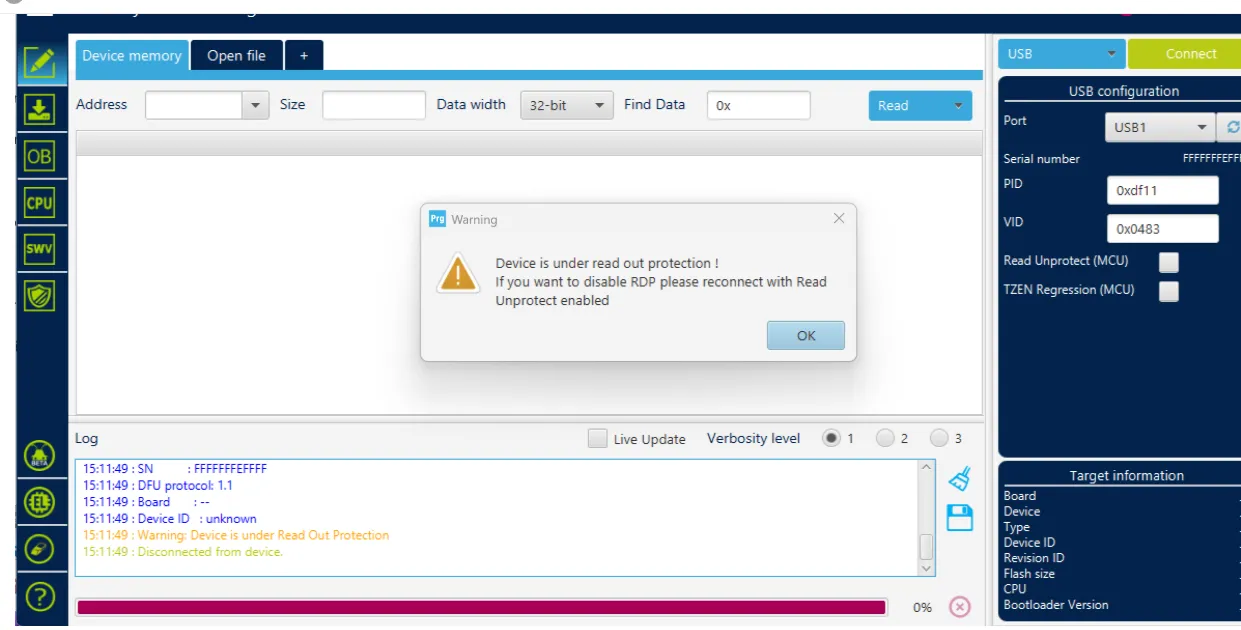
- When the flashing software displays the error message below, try using a hub first. If the problem persists, please check or use the host computer to flash
- Flashing tool Download link
- Download
SetupSTM32CubeProgrammerandSTM32 DFU driver - Download the firmware to any directory on your computer
- Connect the motherboard to the computer using a Type-C cable, ensuring it has entered
dfuflashing mode - In STM32CubeProgrammer, select USB mode, then refresh and connect
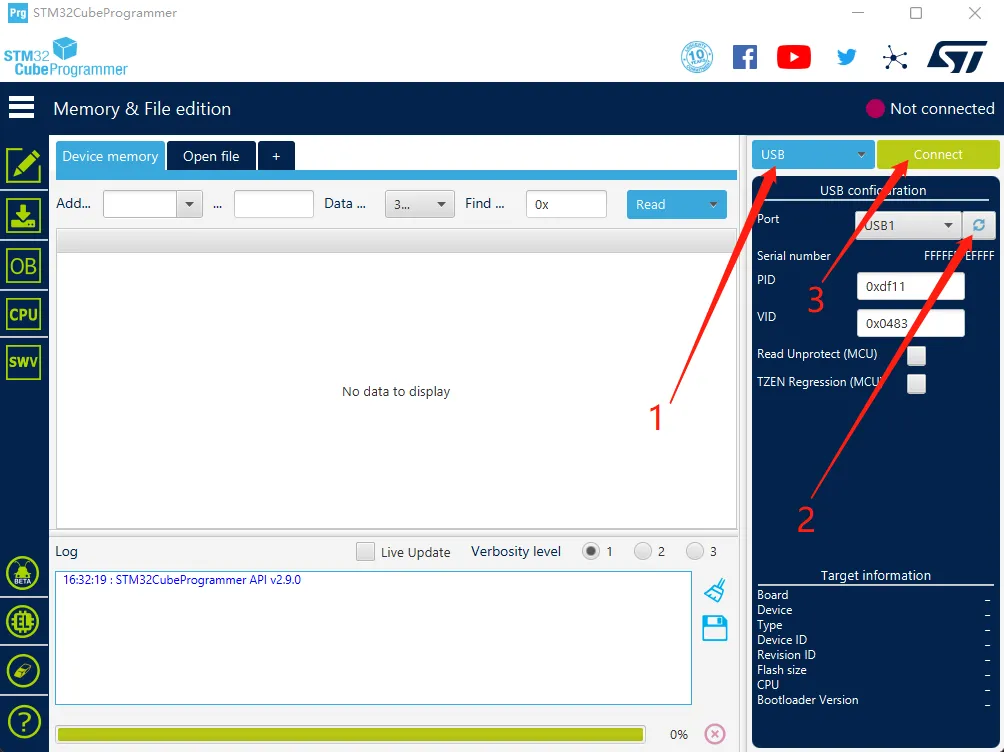
- If no error pop-up appears, the connection is successful.
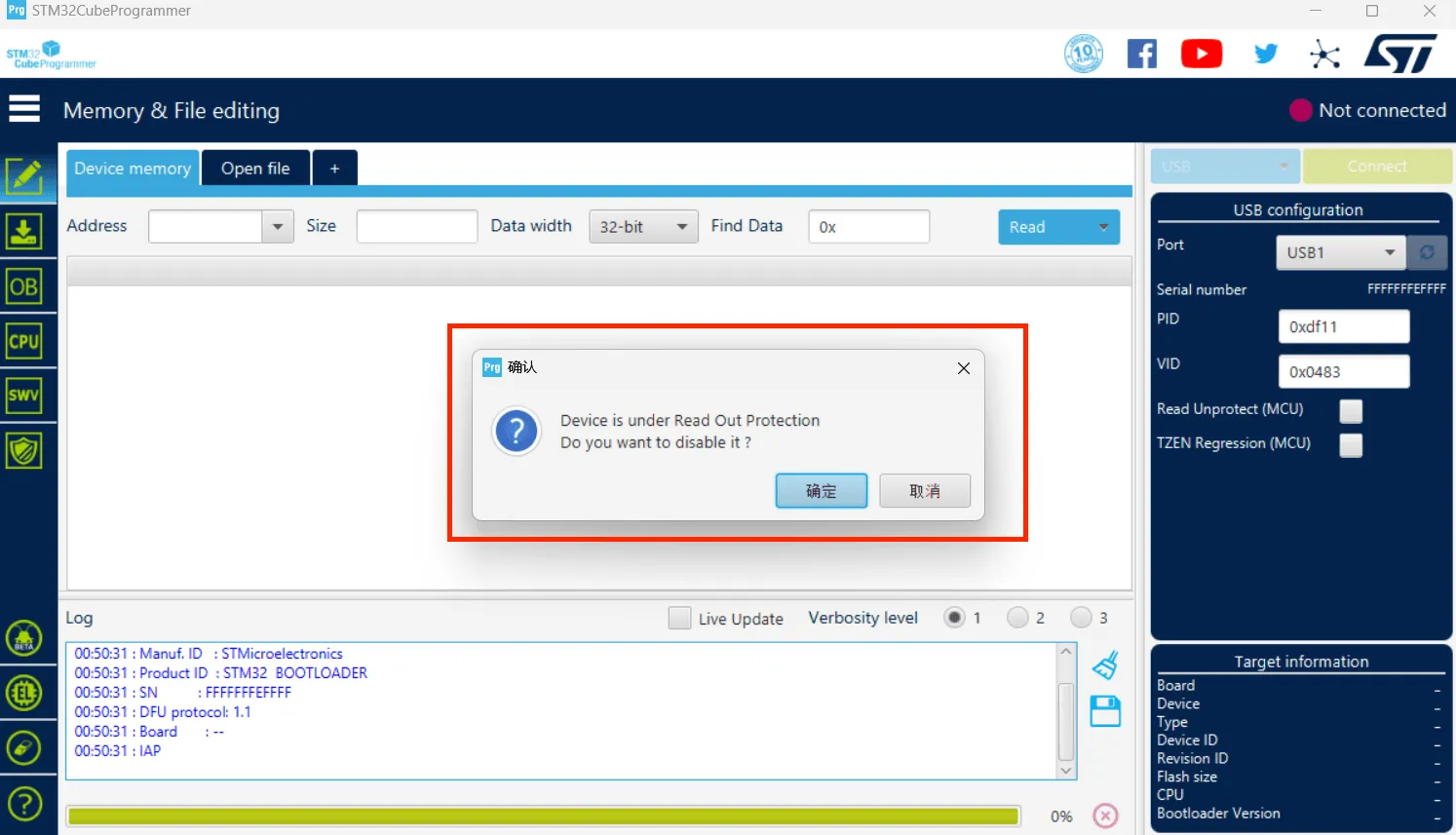
Warning
If the following message appears, it indicates a computer or software issue. Please use the host computer to flash: Host Computer Flashing Guide
- Click the download icon on the left and select the options below
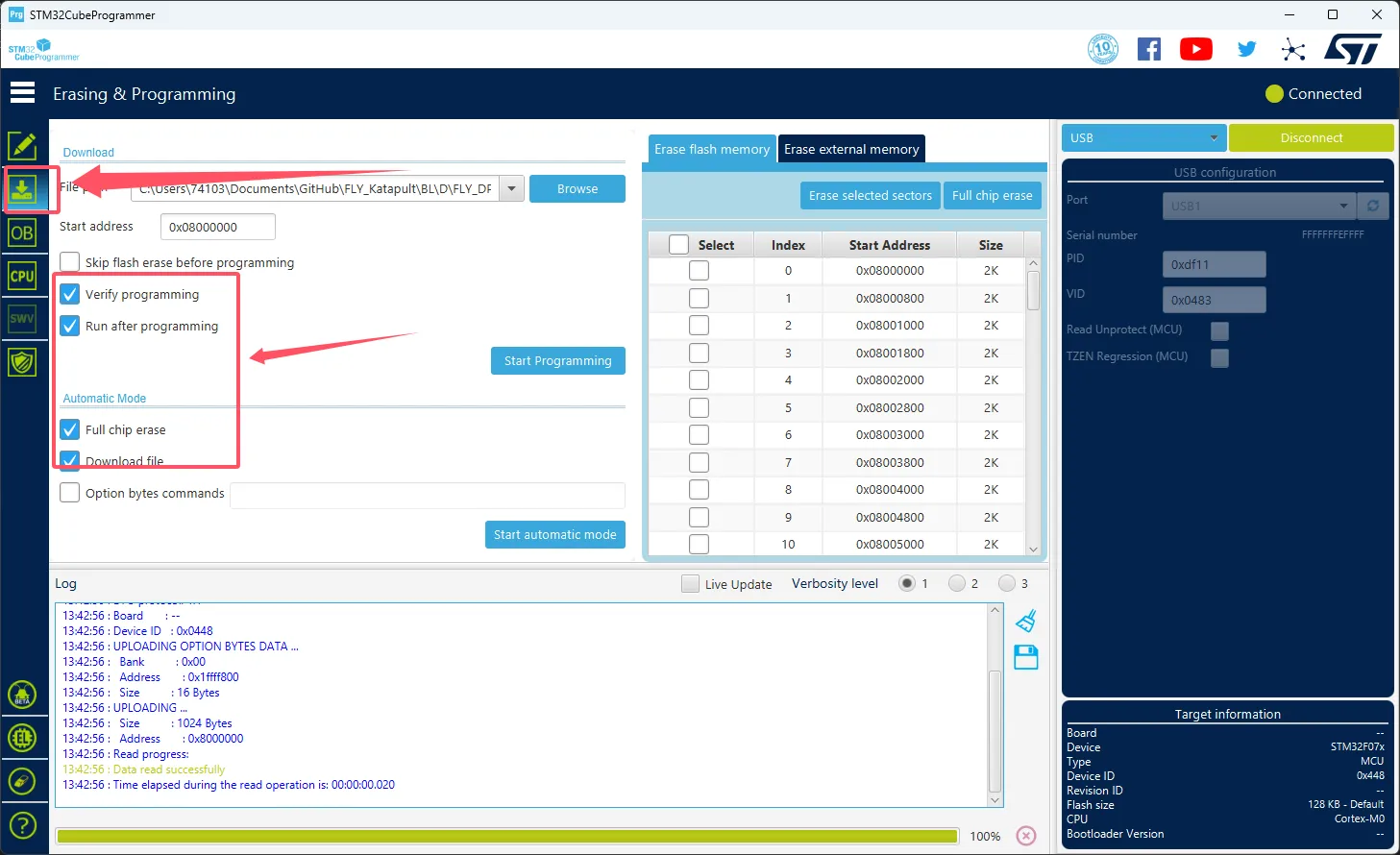
- Click
Browseat the arrow's location, then select the firmware you need to flash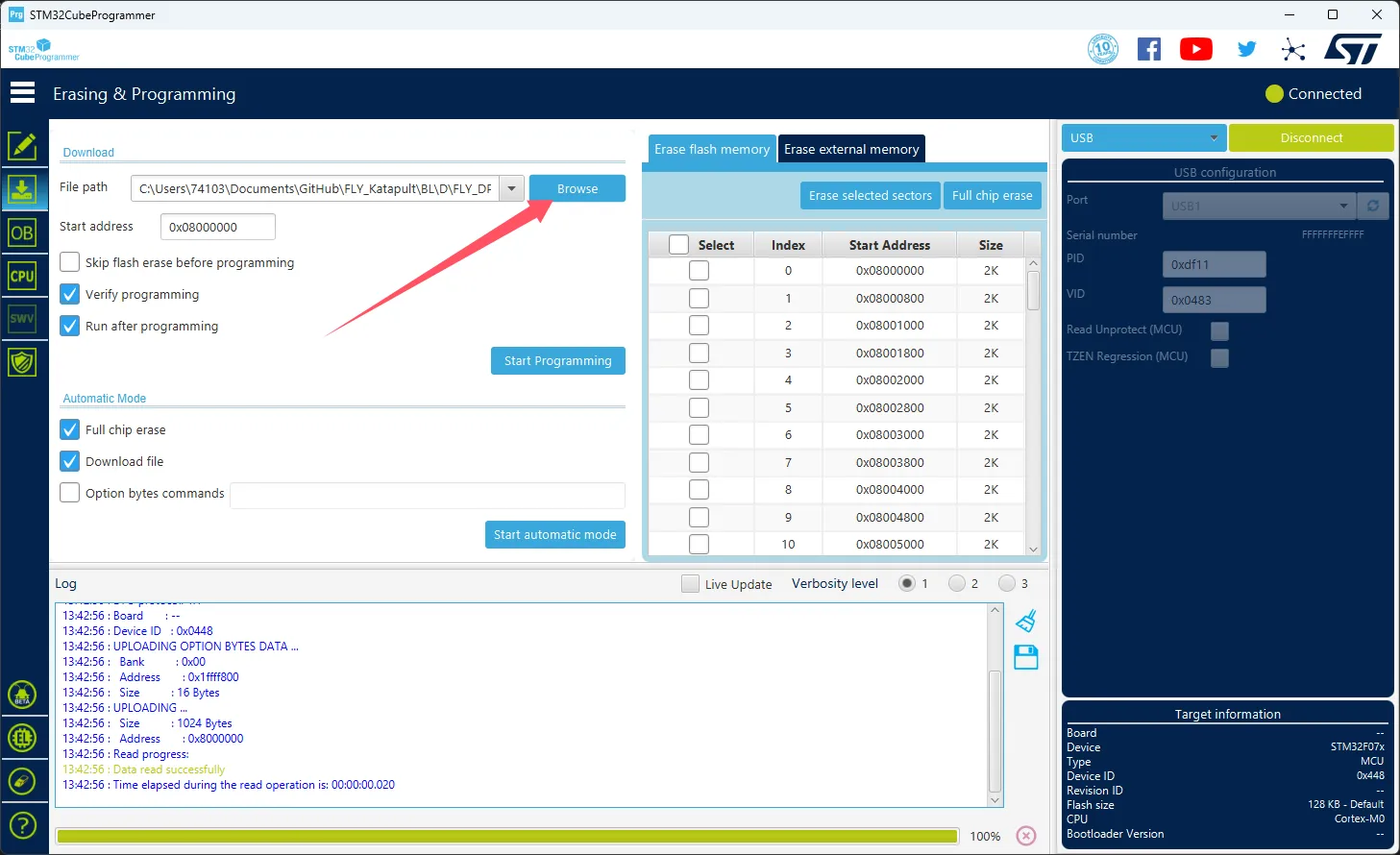
- Select
Start addressand enter0x08000000- Note: If the firmware is in
HEXformat, skip this step!!
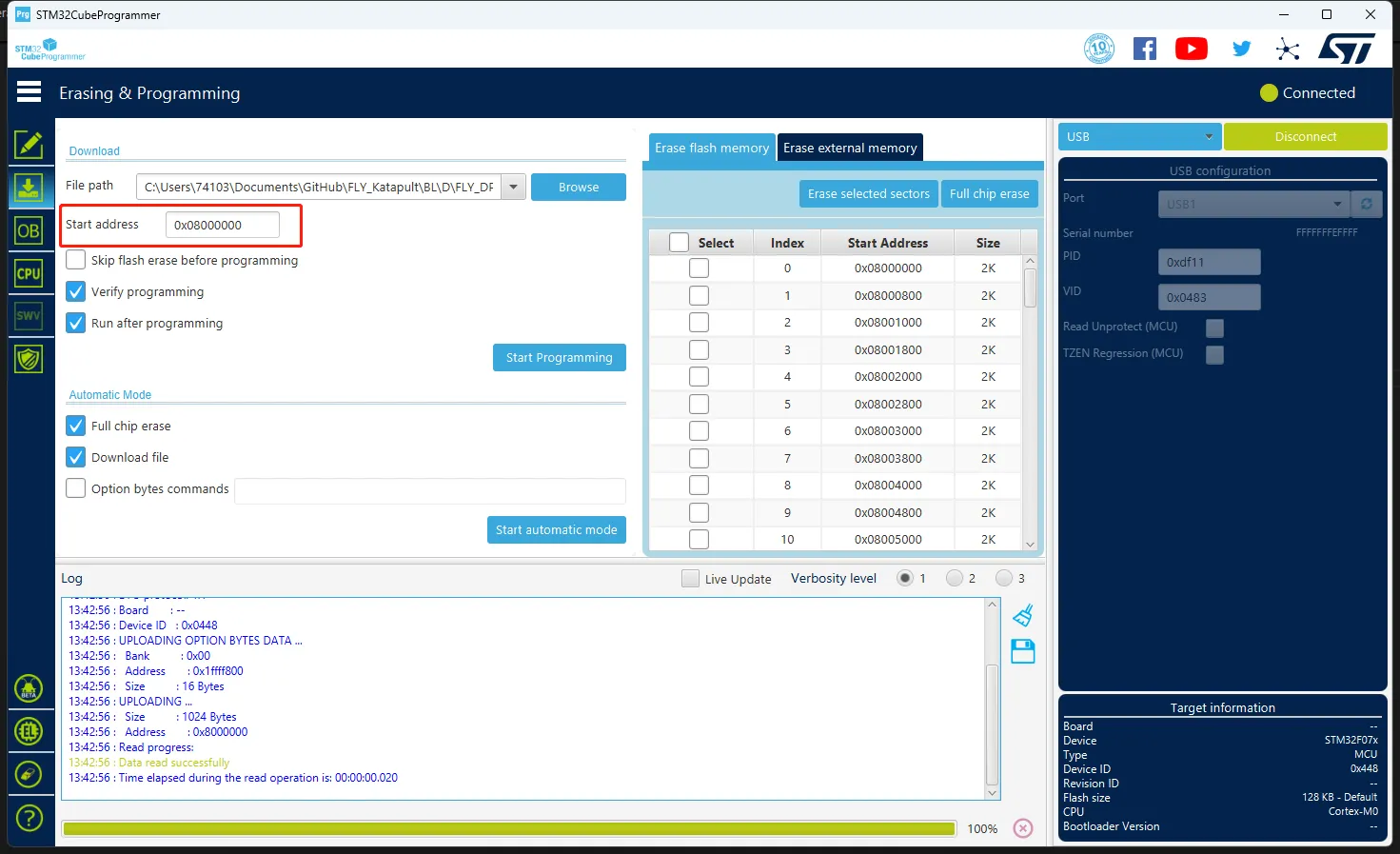
- Note: If the firmware is in
- Click
Start automatic modebelow to begin flashing the firmware
- The appearance of the message below indicates that the firmware has been successfully flashed
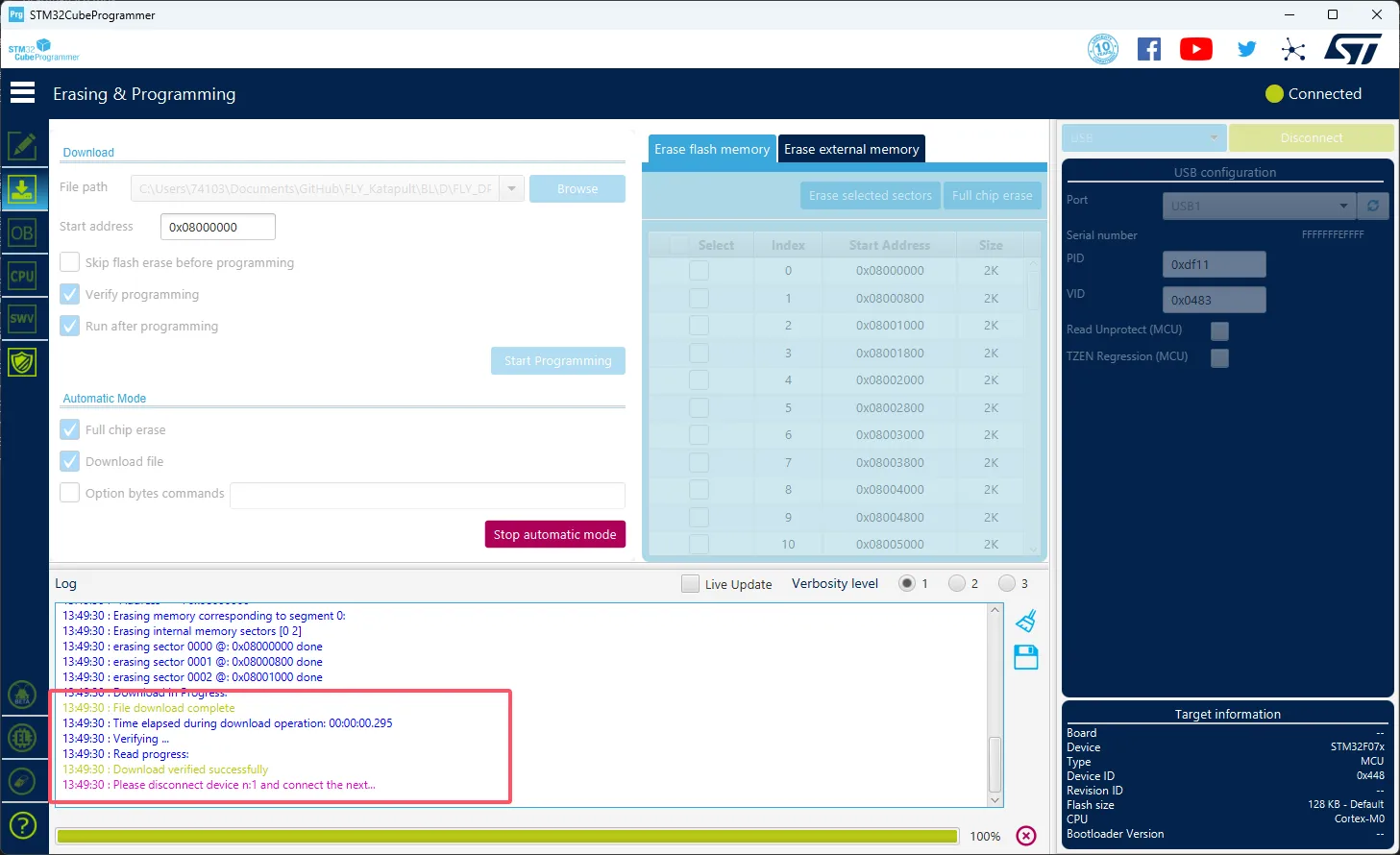
- Install the flashing tool
- This step is not required for FLY host software.
- If installation is needed, ensure the host computer is connected to the internet.
- If the flashing tool has already been installed, you may skip this step.
sudo apt update
sudo apt install dfu-util -y
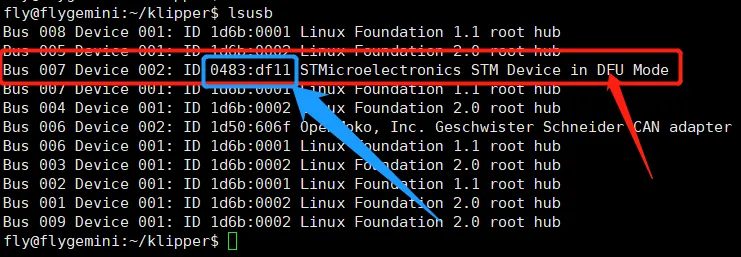
- Check device connection status
- Run the following command to confirm whether the device is successfully connected:
lsusb
- If the DFU device is not recognized, try re-entering flashing mode.
- In some system versions, the device name might differ; as long as
0483:df11appears, it indicates the device has successfully entered flashing mode.
- Obtain the pre-compiled firmware
- Below are pre-compiled firmware files. Please choose the corresponding command based on your system type to download (ensure the host computer can access the internet). If download fails due to network issues, please contact the after-sales group administrator for assistance.
- FlyOS-Armbian or Standard System
- FlyOS-FAST System
cd && git clone https://github.com/FengHua741/FLY_Katapult.git
git clone https://github.com/FengHua741/FLY_Katapult.git /data/FLY_Katapult
ln -s /data/FLY_Katapult /root/FLY_Katapult
- If you have previously downloaded the firmware package, it is recommended to update to the latest version before proceeding:
cd ~/FLY_Katapult && git pull
- Flash the firmware
tip
Only one of the firmwares needs to be flashed.
- Below is the firmware flashing command.
sudo dfu-util -a 0 -d 0483:df11 --dfuse-address 0x08000000 -D ~/FLY_Katapult/BL/D/FLY_D8_F407.bin
-
If the content shown by the arrow in the image below appears,
File downloaded successfully, the flashing was successful.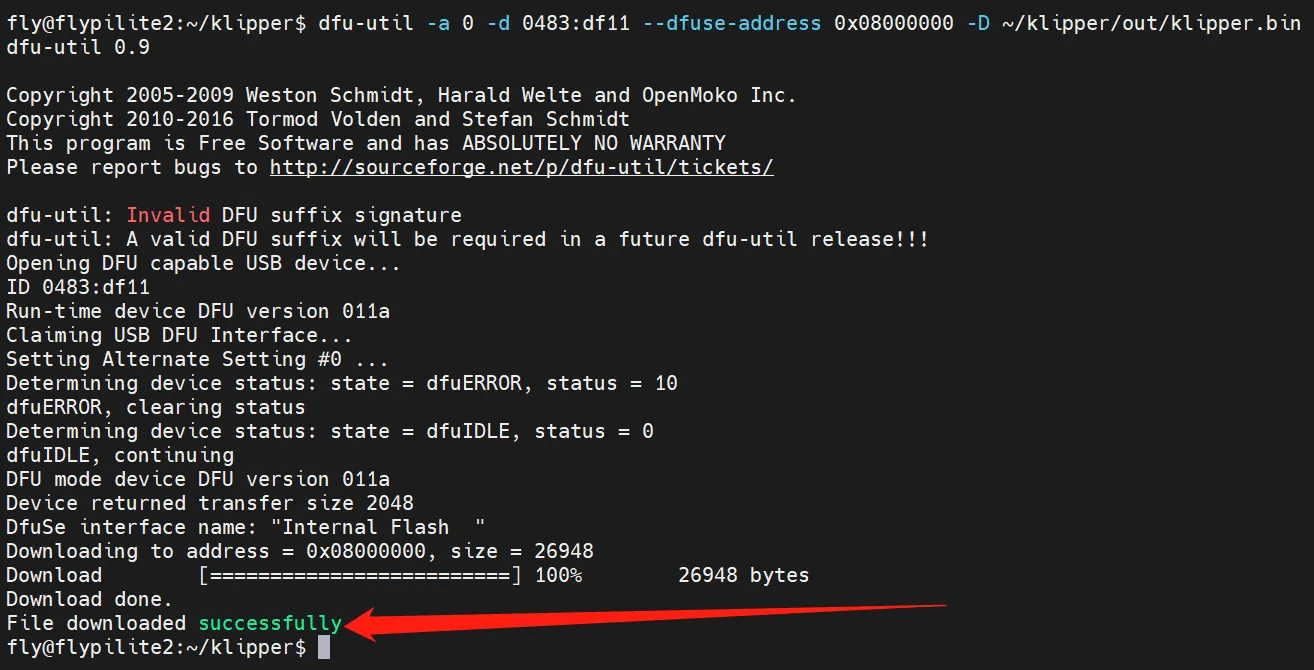
tip
After flashing is complete, the mainboard needs to be completely powered off once.
Loading...