Connect to Host Computer via SSH
dangerous
- This document is only applicable to FLY host computers
- If you are compiling and flashing firmware, please refer to the network connection tutorial instead of the serial port connection tutorial
- You can connect to the device via serial port or WIFI
- Please prepare MobaXterm_Personal or other SSH terminal tools in advance
- Please ensure the
SDcard orM2WEis present and has the corresponding host computer system flashed - If the host computer cannot start normally, please remove peripherals such as drivers, limit switches, fans, etc.!!!
- Finally, connect to SSH via network for convenient firmware compilation!!
- For firmware compilation, please refer to the tutorial on connecting the host computer via WIFI or Ethernet
Install System Storage Card
- Need to ensure the system card has the corresponding system flashed, otherwise it will not boot
- Diagram of Installing M2WE on C8P
- Diagram of Installing TF Card on C8P
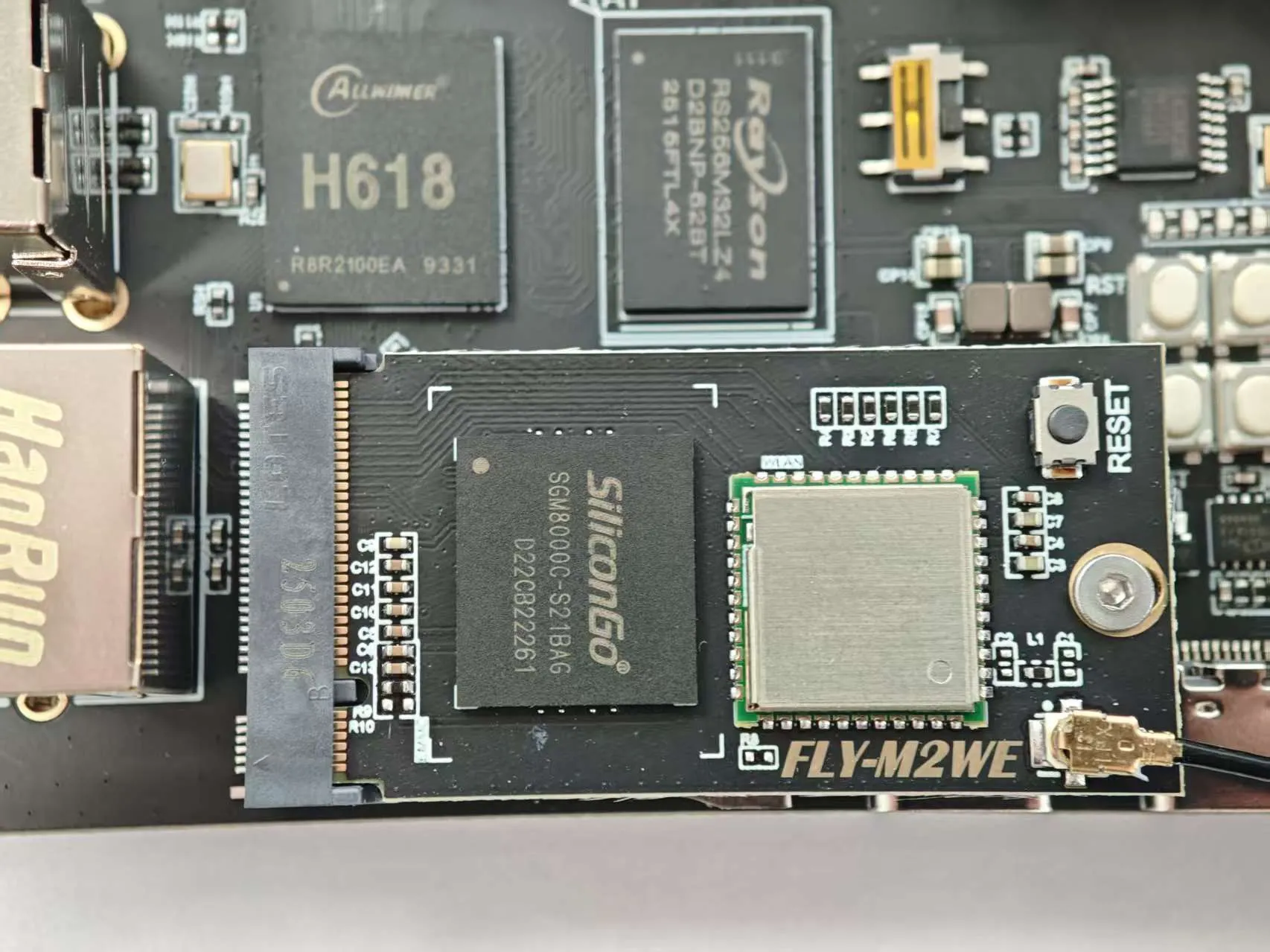
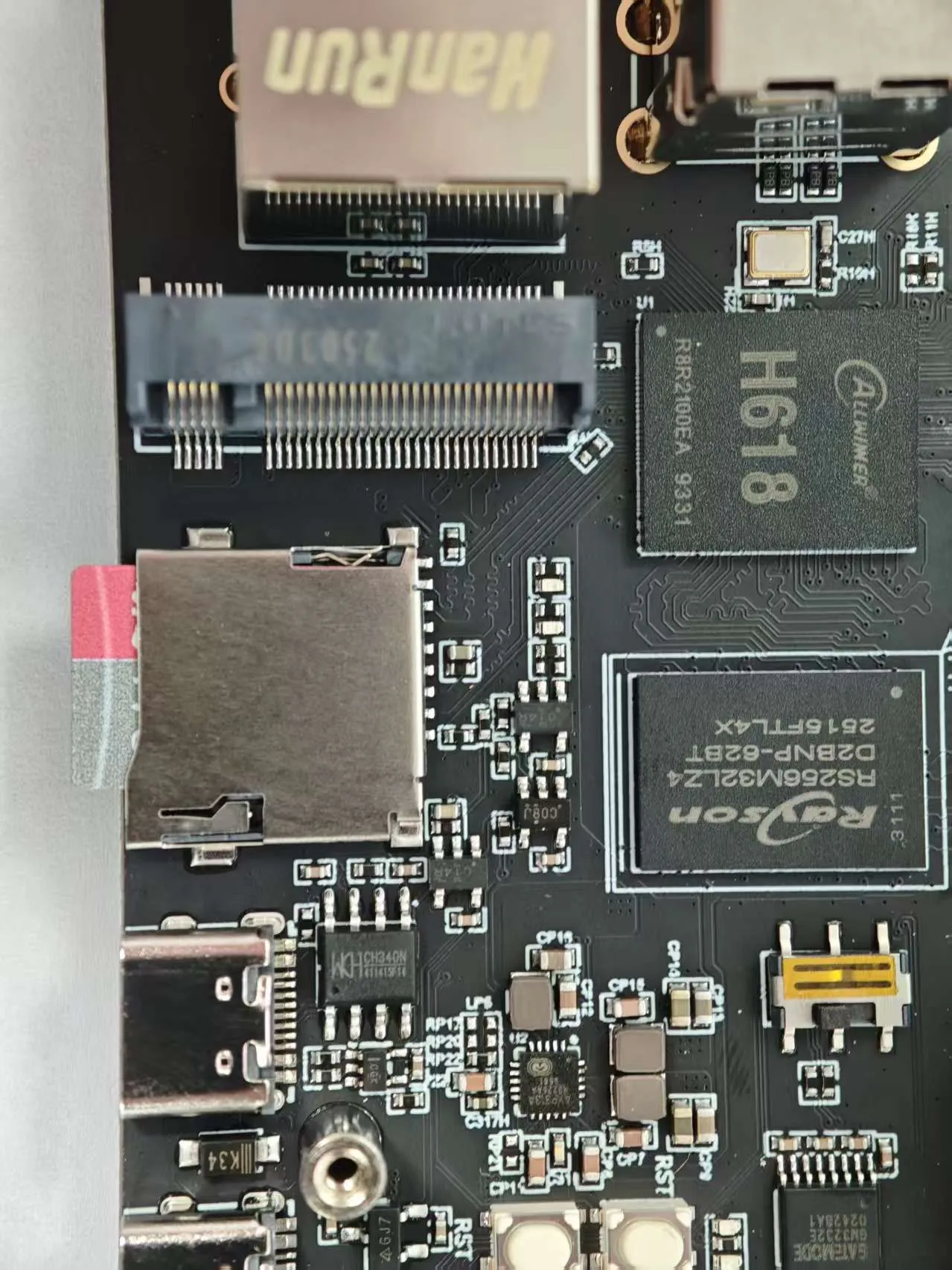
Install Antenna
- Install the antenna for the
M2WEor2.4G WiFimodule
warning
- The FLY host computer requires the
M2WEor2.4G WIFImodule; otherwise, WiFi cannot be used - Note that the host computer does not support WiFi with Chinese names, nor does it support dual-band WiFi combining 2.4G and 5G
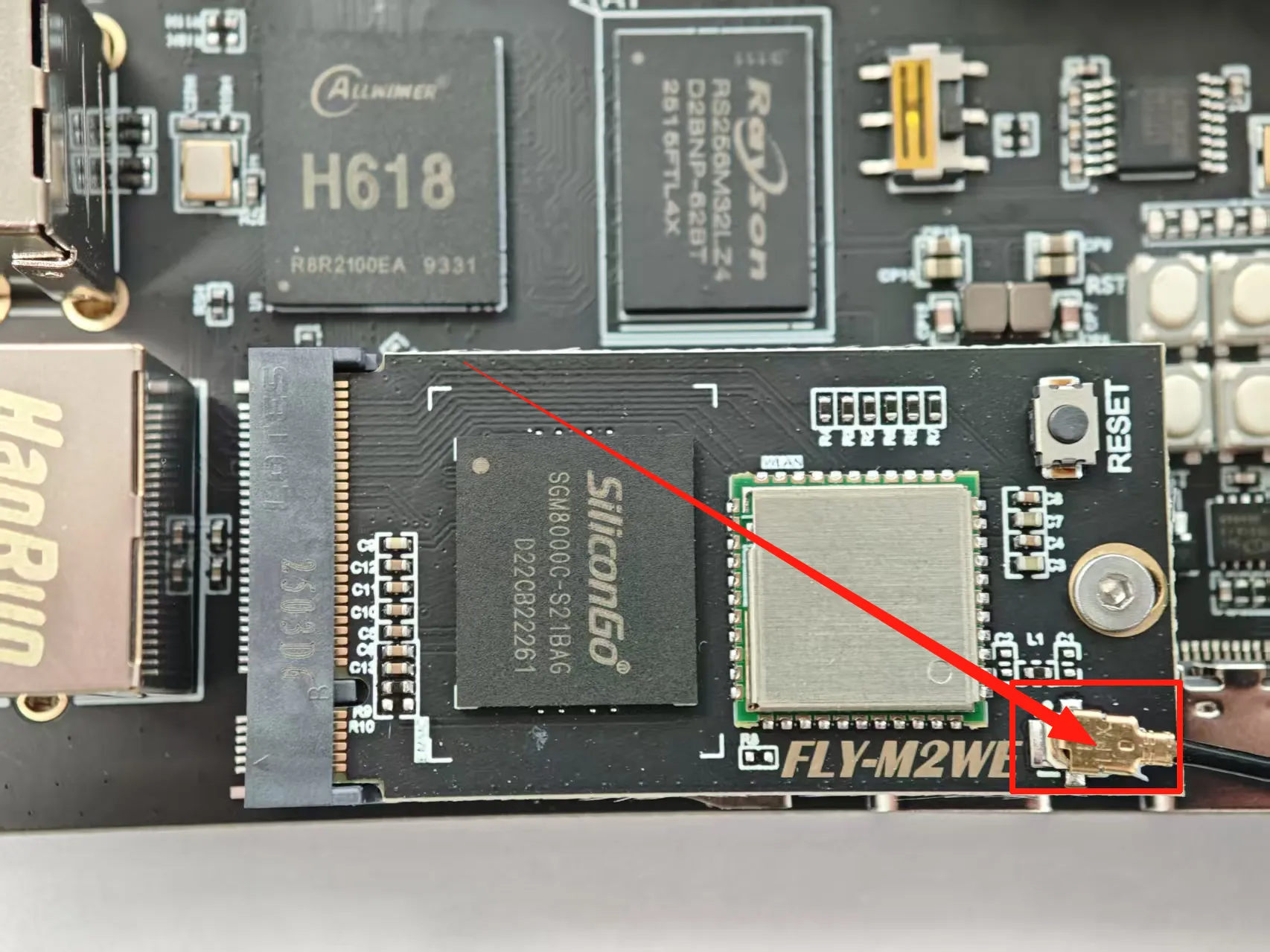
- The red arrow points to the WIFI antenna interface
- The WIFI antenna port is
ipex1 - Please install the antenna on the M2WE; otherwise, poor signal may prevent connecting to the router
Power Supply
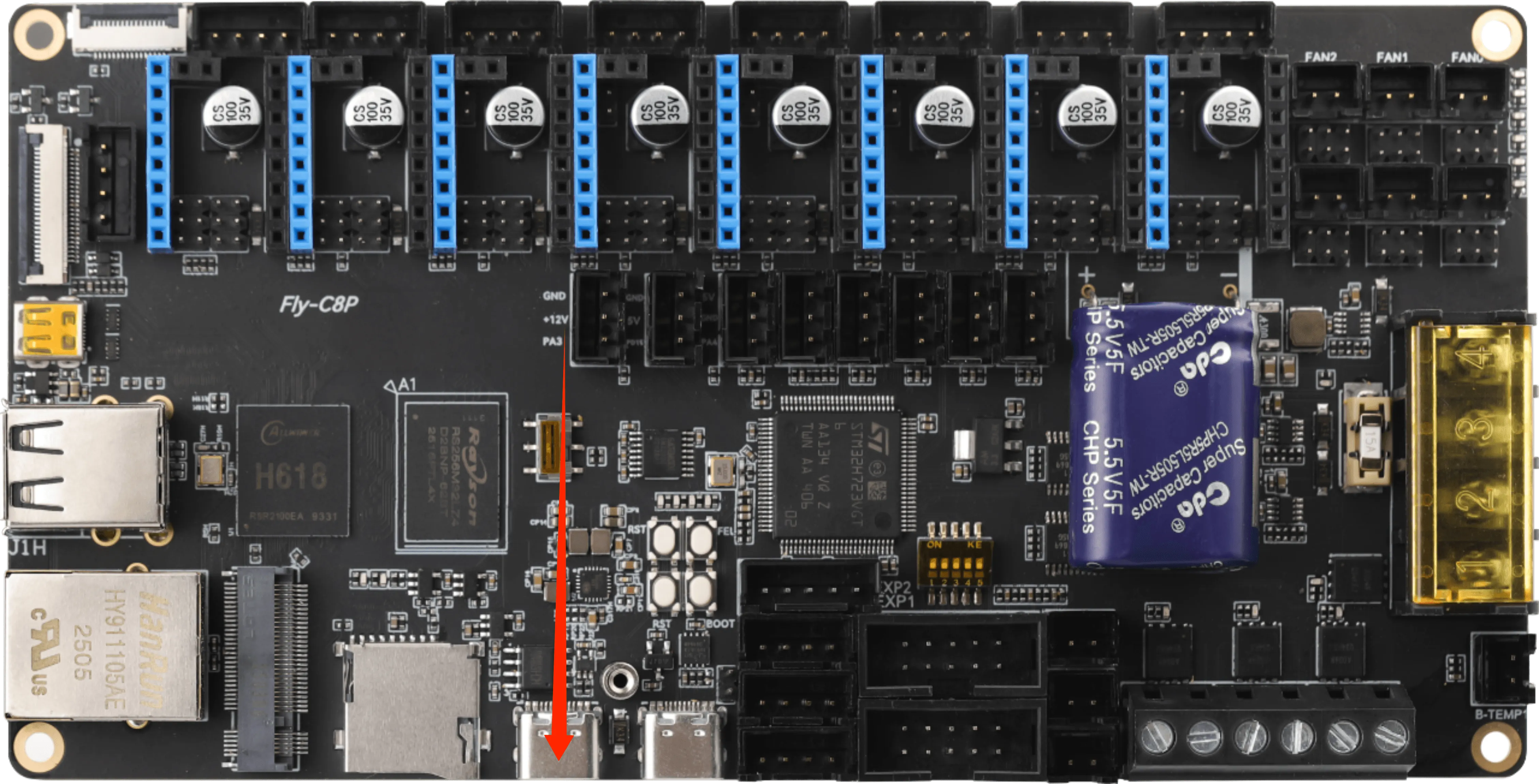
- Connect the FLY host computer to the computer using a
USB Type-Ccable - Ensure the
USB Type-Ccable supports data transfer! - After the system starts, the indicator light will flash rapidly!!
- Flashing indicates the system has started
Connect SSH
- Serial Connection
- Network Connection
Connecting to Host Computer SSH via Serial Port
- If the motherboard is properly connected to the computer, you can see the CH340 port by opening the Device Manager.
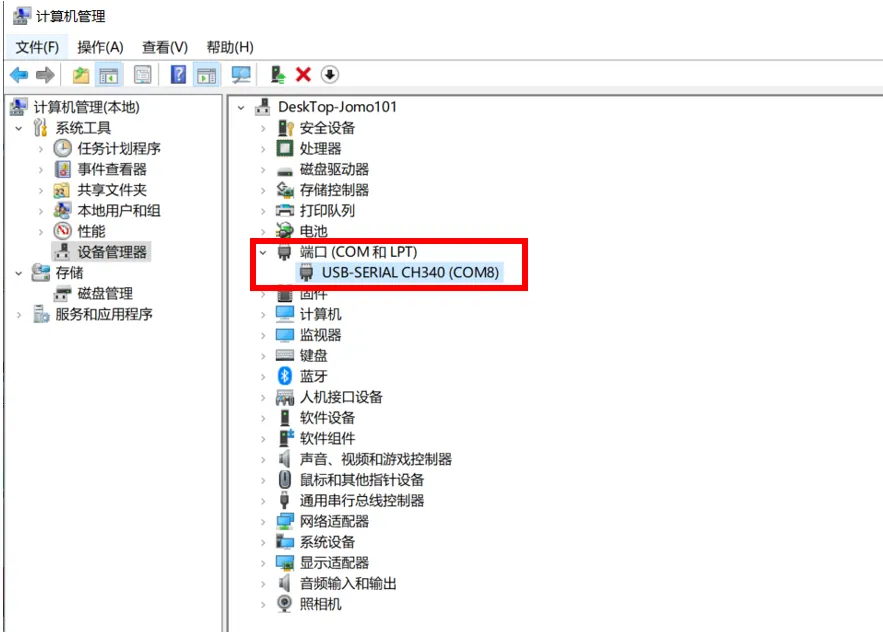
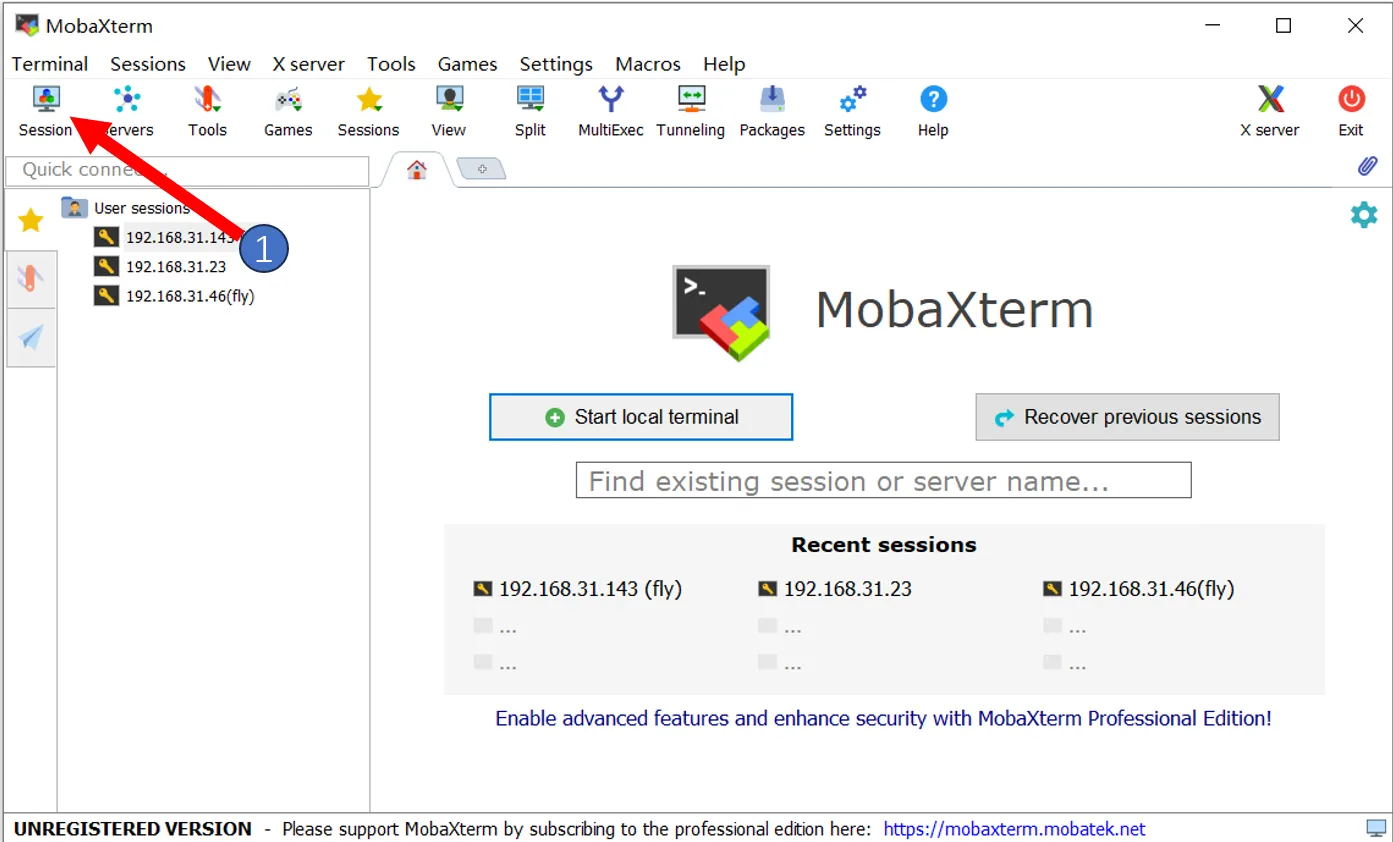
- Open
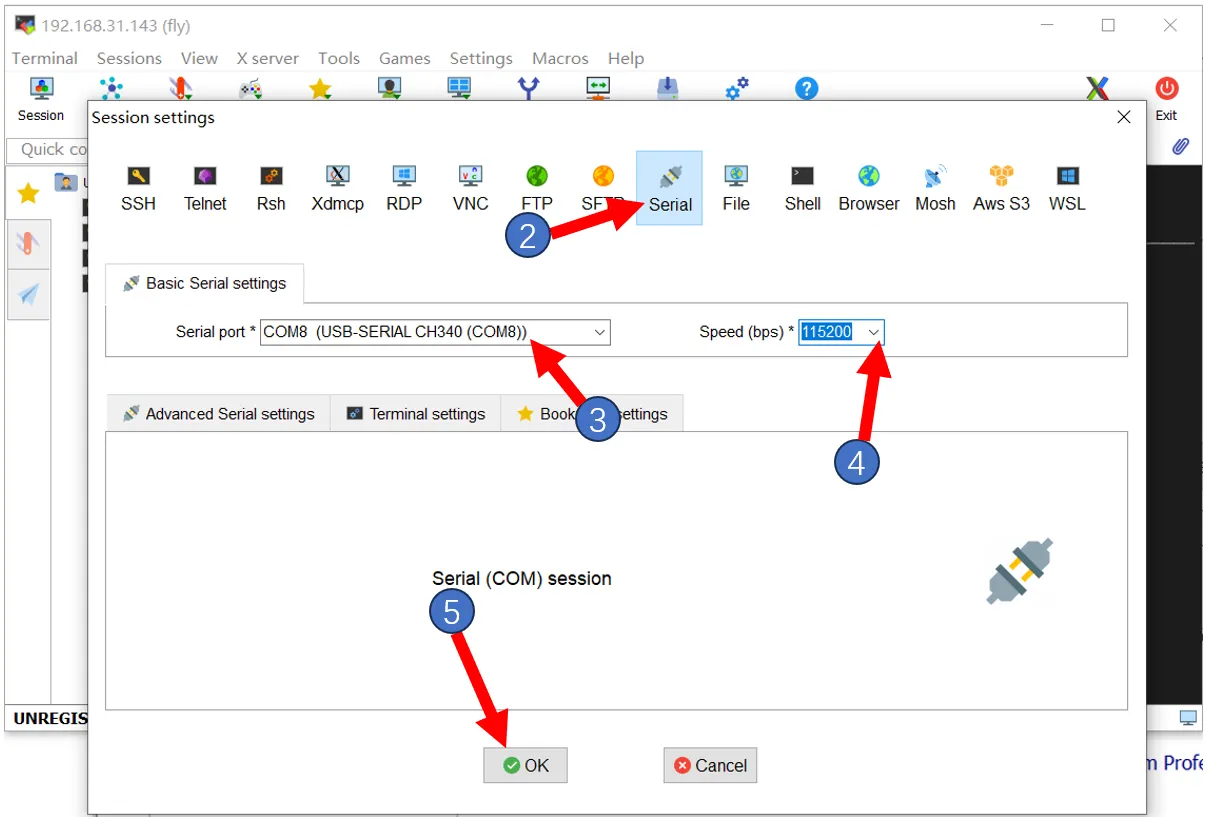
MobaXtermand set it up as shown below. Select the port previously seen in the Device Manager.
- Please note that
Speed(bps)*should be set to115200.
- If everything is normal, you should see the startup screen.
- After a brief wait, if the screen below appears, the system has started successfully.
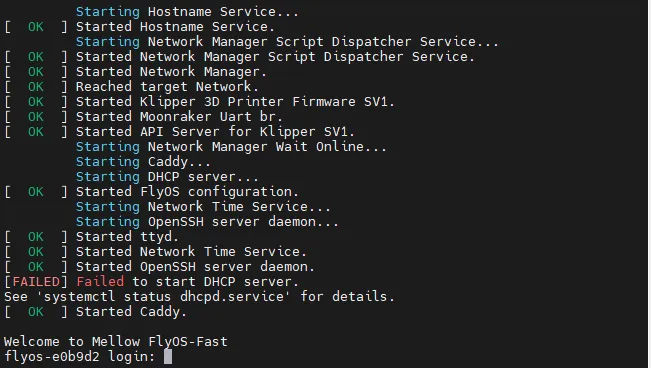
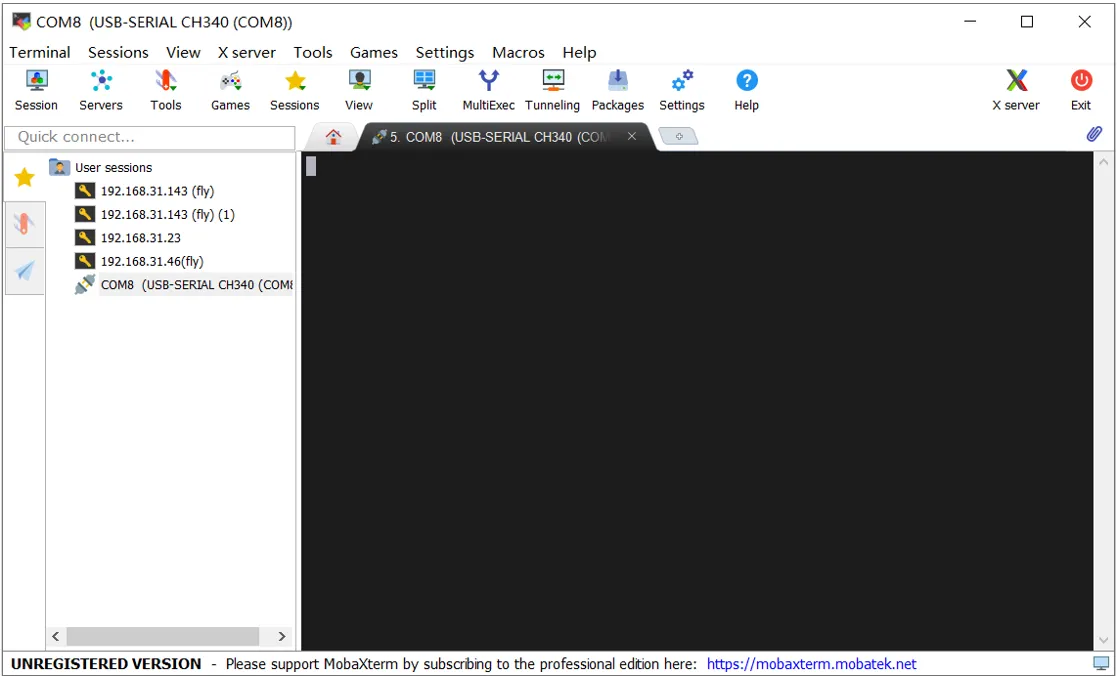
If after waiting for several minutes, as shown below, there is no display on the screen, press the Enter key several times.
-
Please note that for the FAST system, you need to enter the username and password, and the password will not be visible.
-
FlyOS-FAST default username is root, default password is mellow.
-
Starting from version
V1.3.2, the FAST system automatically logs in when connecting via serial port by double-clicking or pressing Enter twice consecutively. -
The following content will appear after pressing Enter

tip
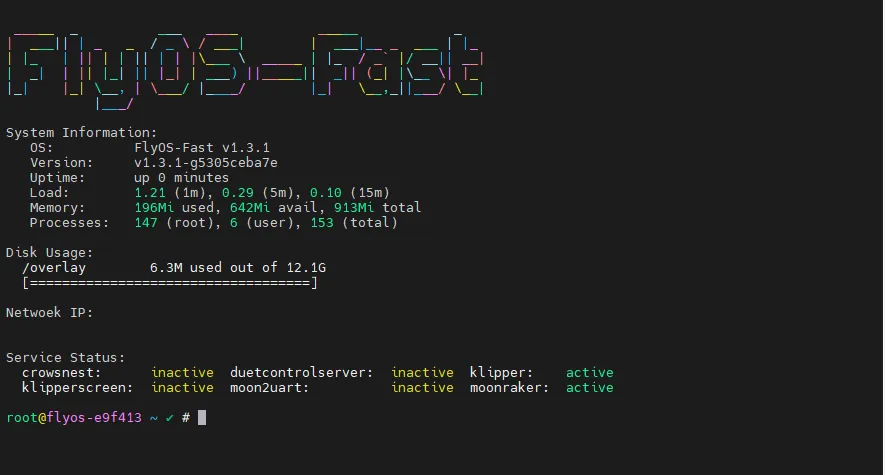
- The appearance of the screen below indicates successful login.
- FAST system updated the appearance below in version V1.3.0.
- If you need to check the device
IP, ensure the device is connected to an Ethernet cable or has successfully connected to WIFI. Connect to WIFI
Connecting to Host Computer SSH via Network IP
- Please log into the router's backend connected to the host computer unless you already know the host computer's IP address.
- Please ensure you know the username and password of the host computer.
- FlyOS-FAST default username is root, default password is mellow.
- If the motherboard has already booted and is connected to the network, you can use the following method to connect to SSH.
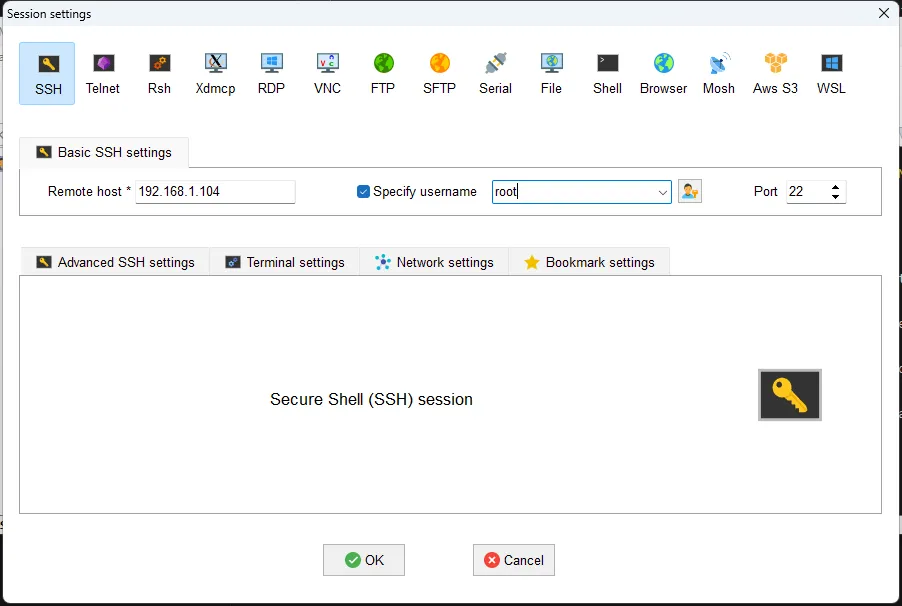
- Open MobaXterm and set it up as shown below. Fill in the IP address previously checked, which can also be viewed in the router's backend.
Note: The username entered in step 4 here is the host computer's username.
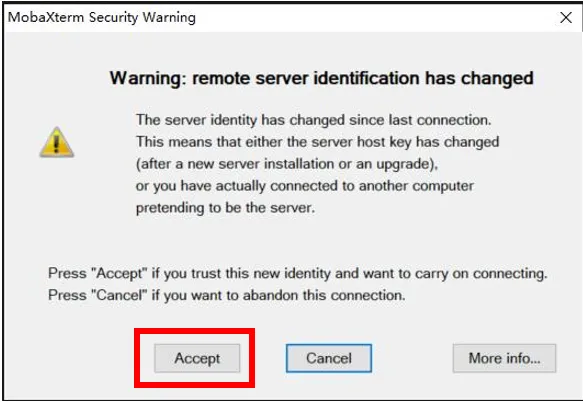
- The first time connecting, a window like this will pop up; click
Acceptto proceed.
- When prompted for a password, press Enter after entering the host computer's password.
Note: The password entered here is not visible. Press Enter directly after typing it in.
- For FLY-FAST system, username is:
root, password is:mellow

tip
- The appearance of the screen below indicates successful login.
- FAST system updated the appearance below in version V1.3.0.
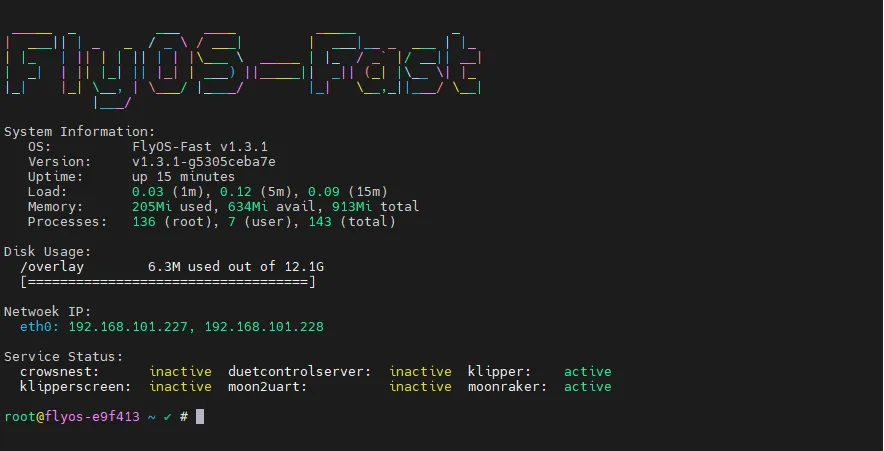
- Successfully logged in
Loading...