Marlin Firmware Download
Note
Please do not place under Chinese paths
Fly_D8-Marlin
- Click the download link below
-
Loading...
Marlin Firmware Compilation
Note
- This tutorial is based on the
Windowsoperating system - This tutorial uses
vscode, please install it in advance
Install Python Environment
- Download Python environment
- Click the download link below
-
Loading...
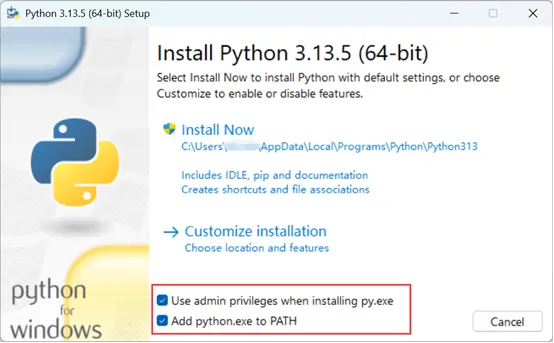
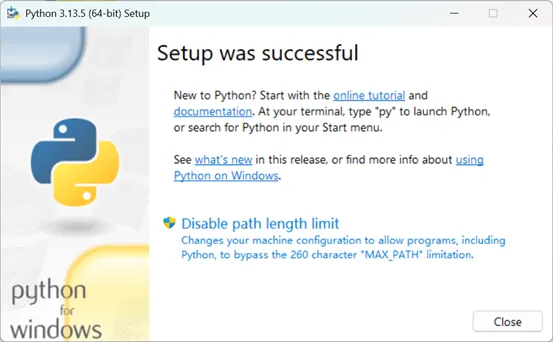
- Installation completed
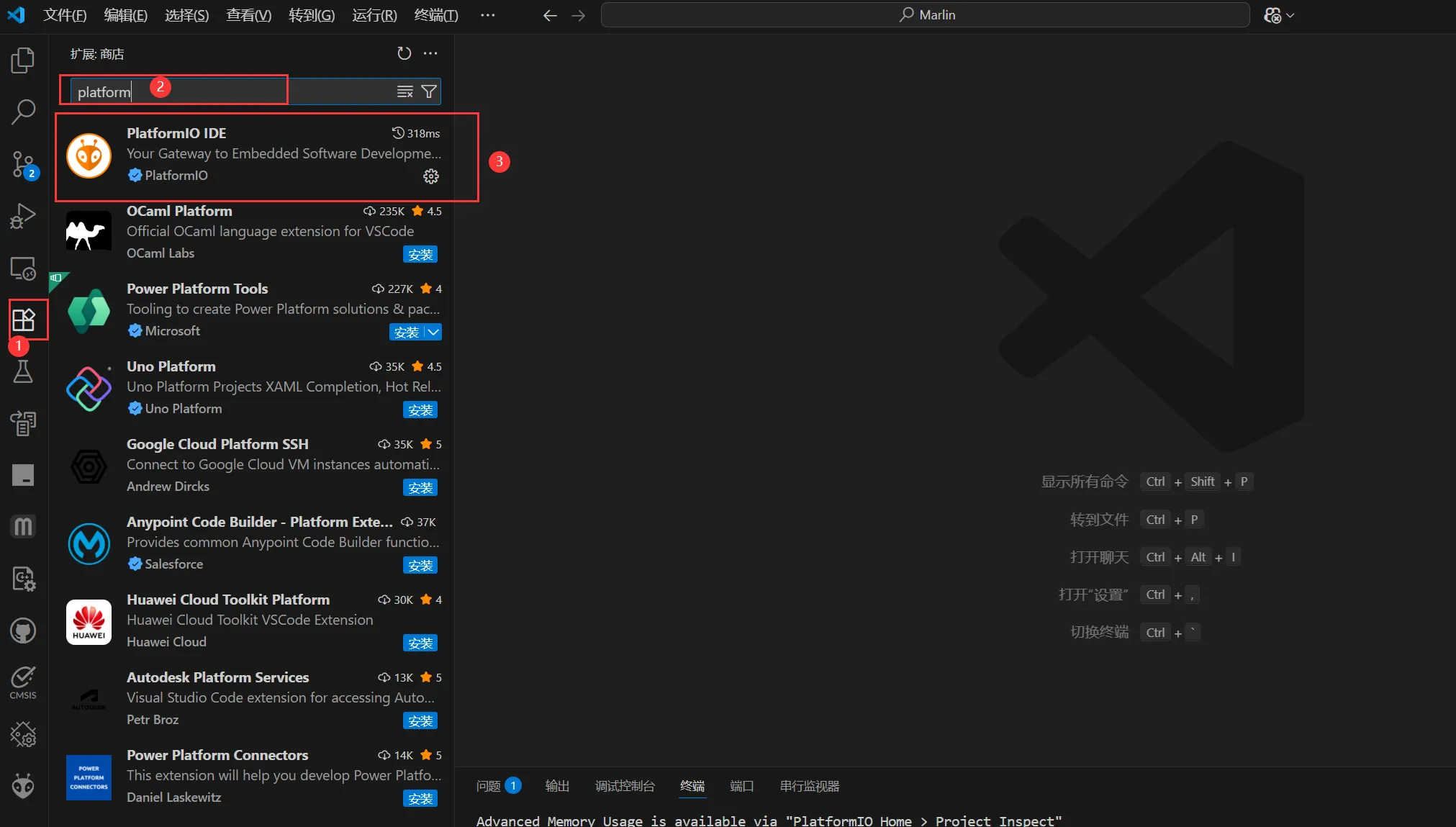
Install vscode Extensions (Plugins)
- Open vscode, open the Extensions Marketplace (the button with four squares on the left side of the interface)
- Enter the following in the search box
platformIO
- Find the plugin and install it
- Restart vscode
Firmware Location
- After a successful compilation, the firmware file you need is
firmware.bin. - It is located in the
.pio\build\<your motherboard model>\folder within the project directory. - Path Description:
<your motherboard model>should be replaced with the specific motherboard model you selected during compilation, such asD8orsuper8. The name of this directory matches your compilation environment.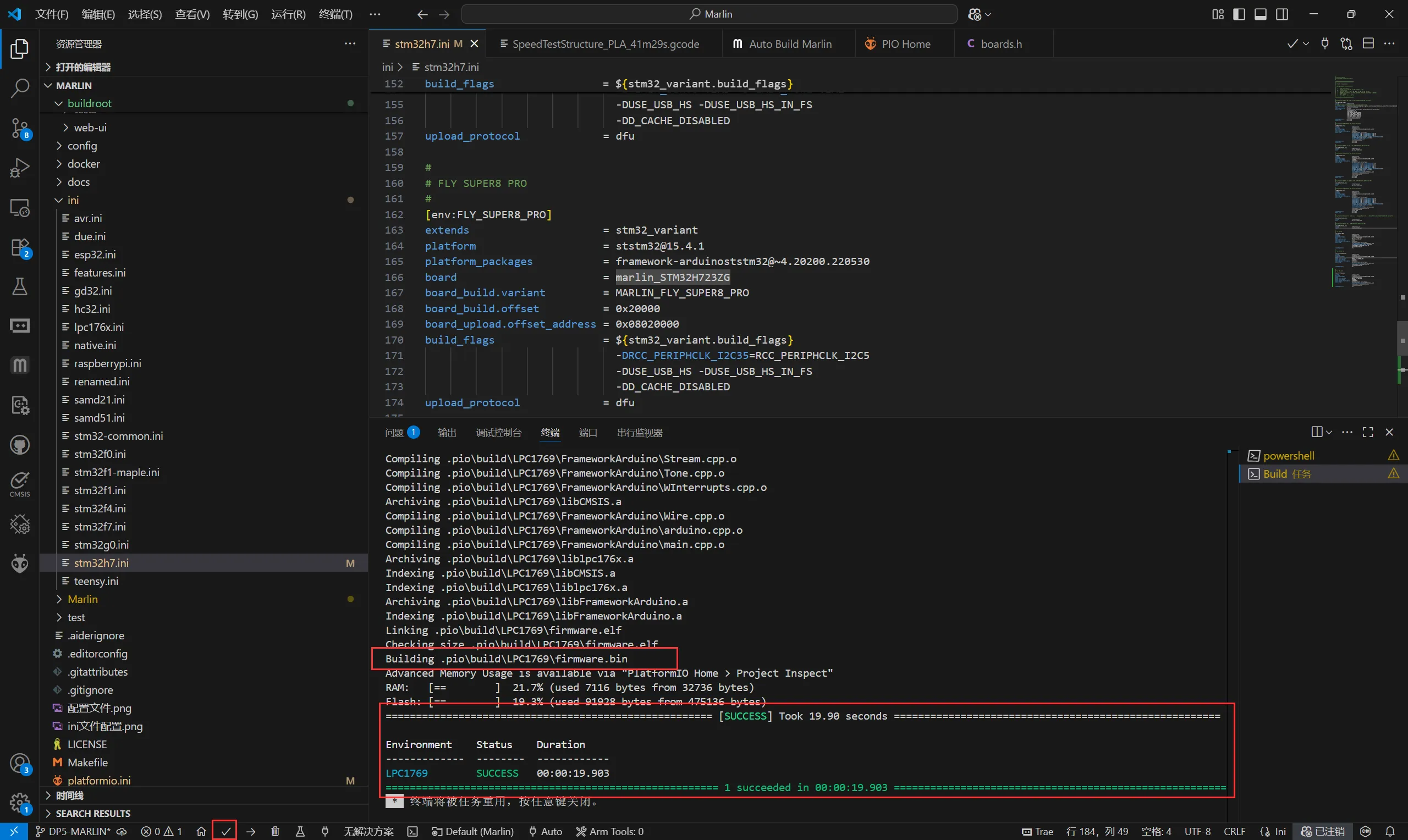
Flashing the Firmware
Notice
To ensure successful STM32 firmware flashing, please pay attention to the following:
- Some computers' USB ports may cause unstable flashing due to driver or signal compatibility issues. We recommend that you try connecting using a different USB port.
- If changing ports doesn't help, an effective solution is to connect via an external USB hub, which often improves compatibility.
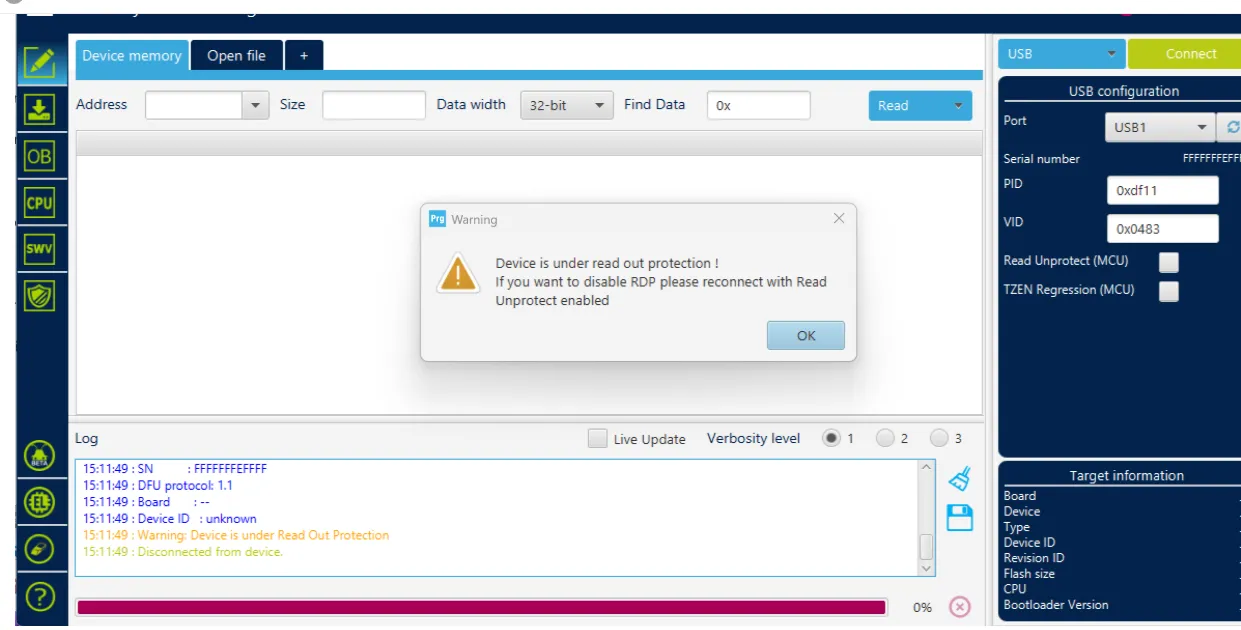
- When the flashing software displays the error message below, try using a hub first. If the problem persists, please check or use the host computer to flash
- Flashing tool Download link
- Download
SetupSTM32CubeProgrammerandSTM32 DFU driver - Download the firmware to any directory on your computer
- Connect the motherboard to the computer using a Type-C cable, ensuring it has entered
dfuflashing mode - In STM32CubeProgrammer, select USB mode, then refresh and connect
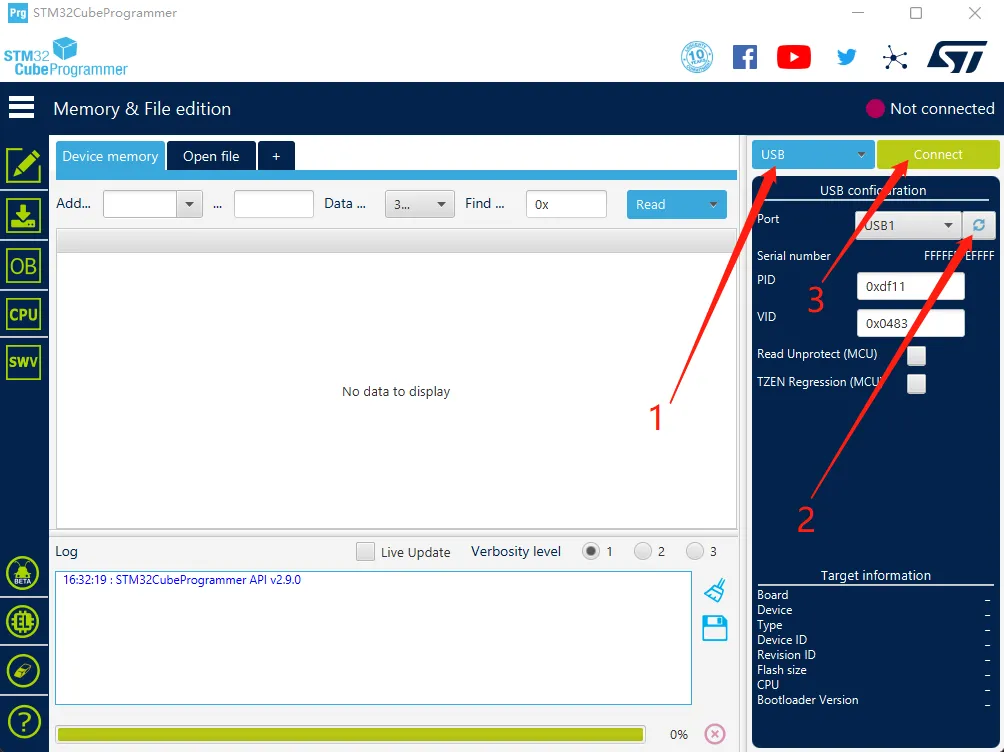
- If no error pop-up appears, the connection is successful.
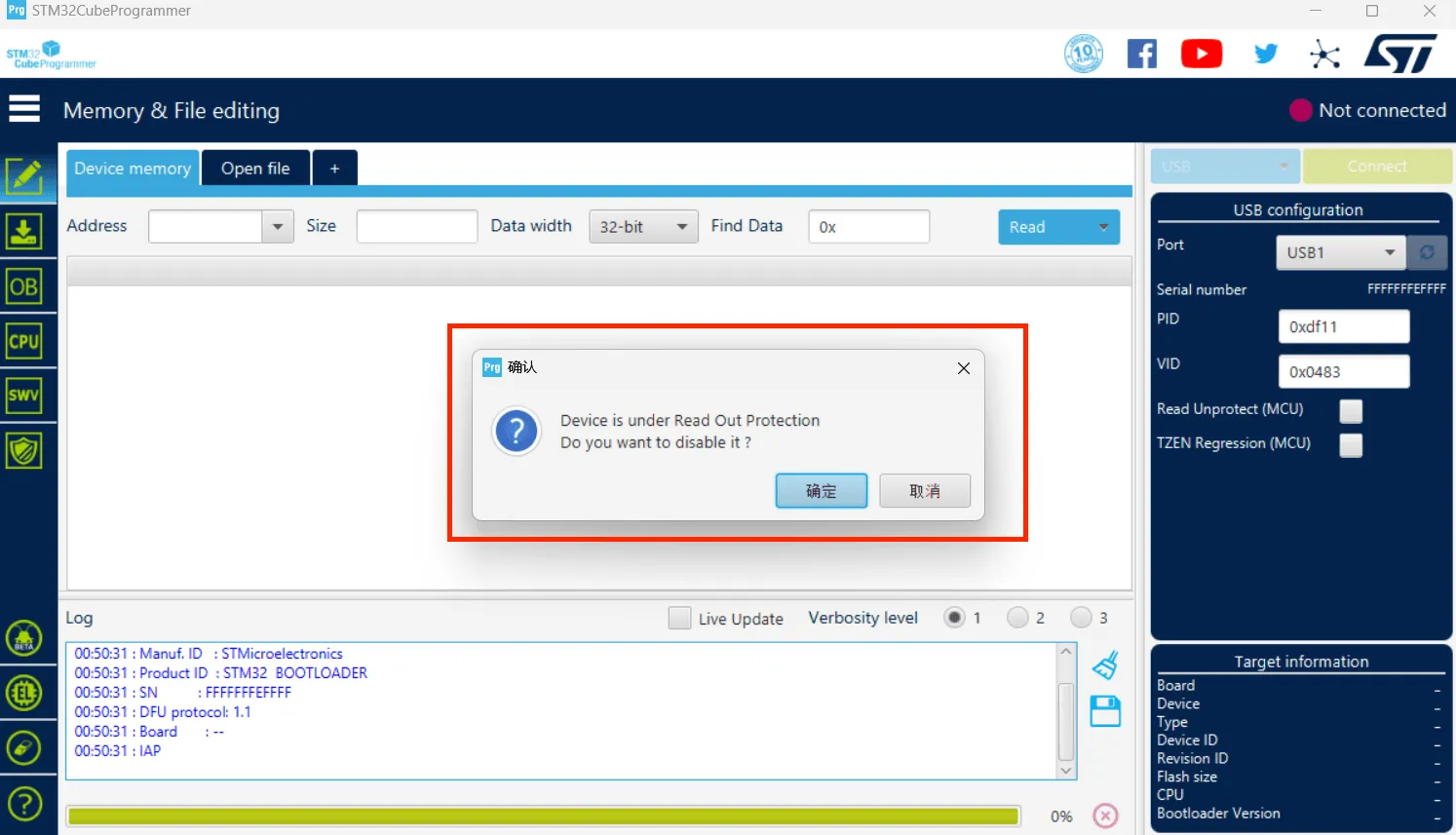
Warning
If the following message appears, it indicates a computer or software issue. Please use the host computer to flash: Host Computer Flashing Guide
- Click the download icon on the left and select the options below
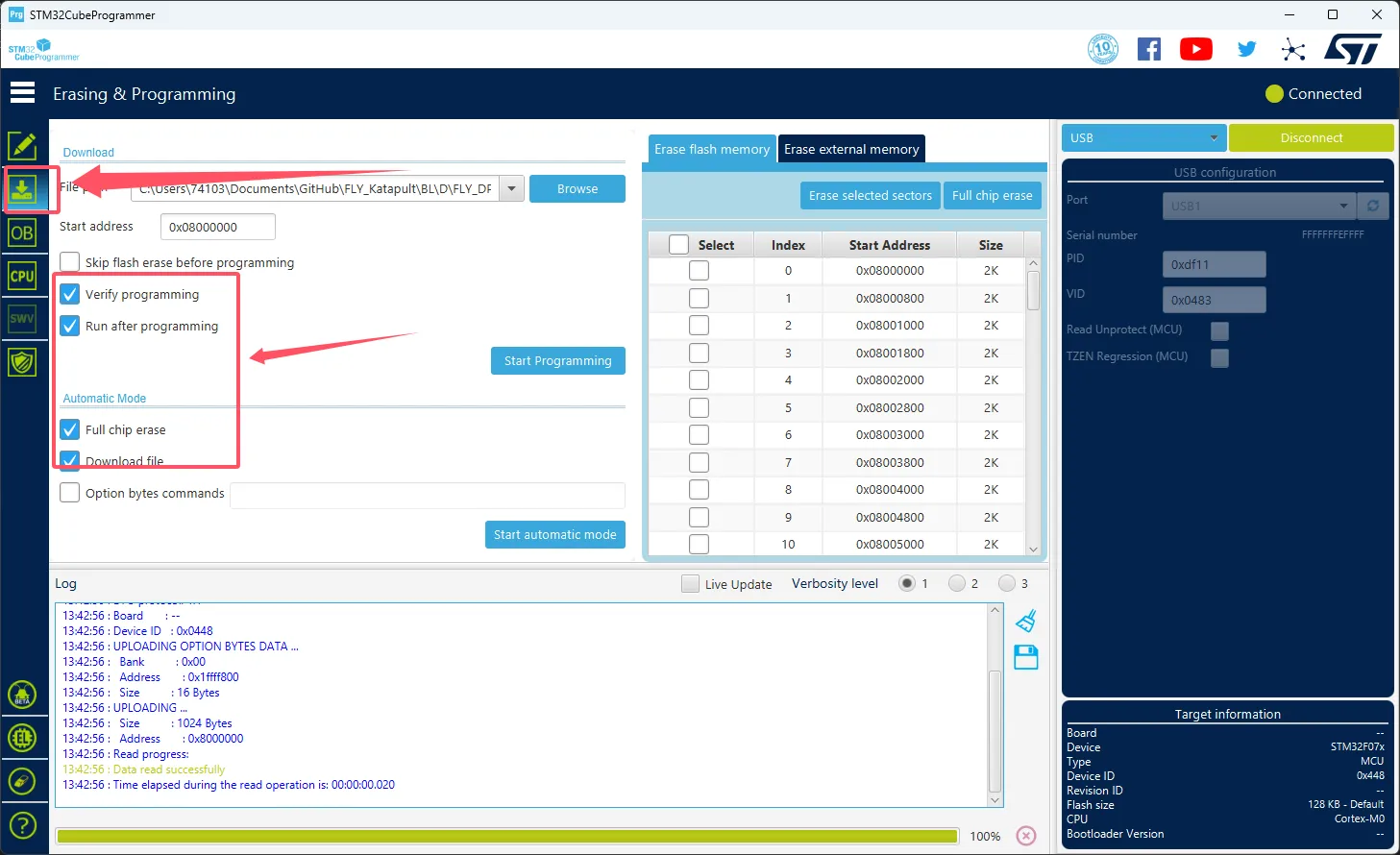
- Click
Browseat the arrow's location, then select the firmware you need to flash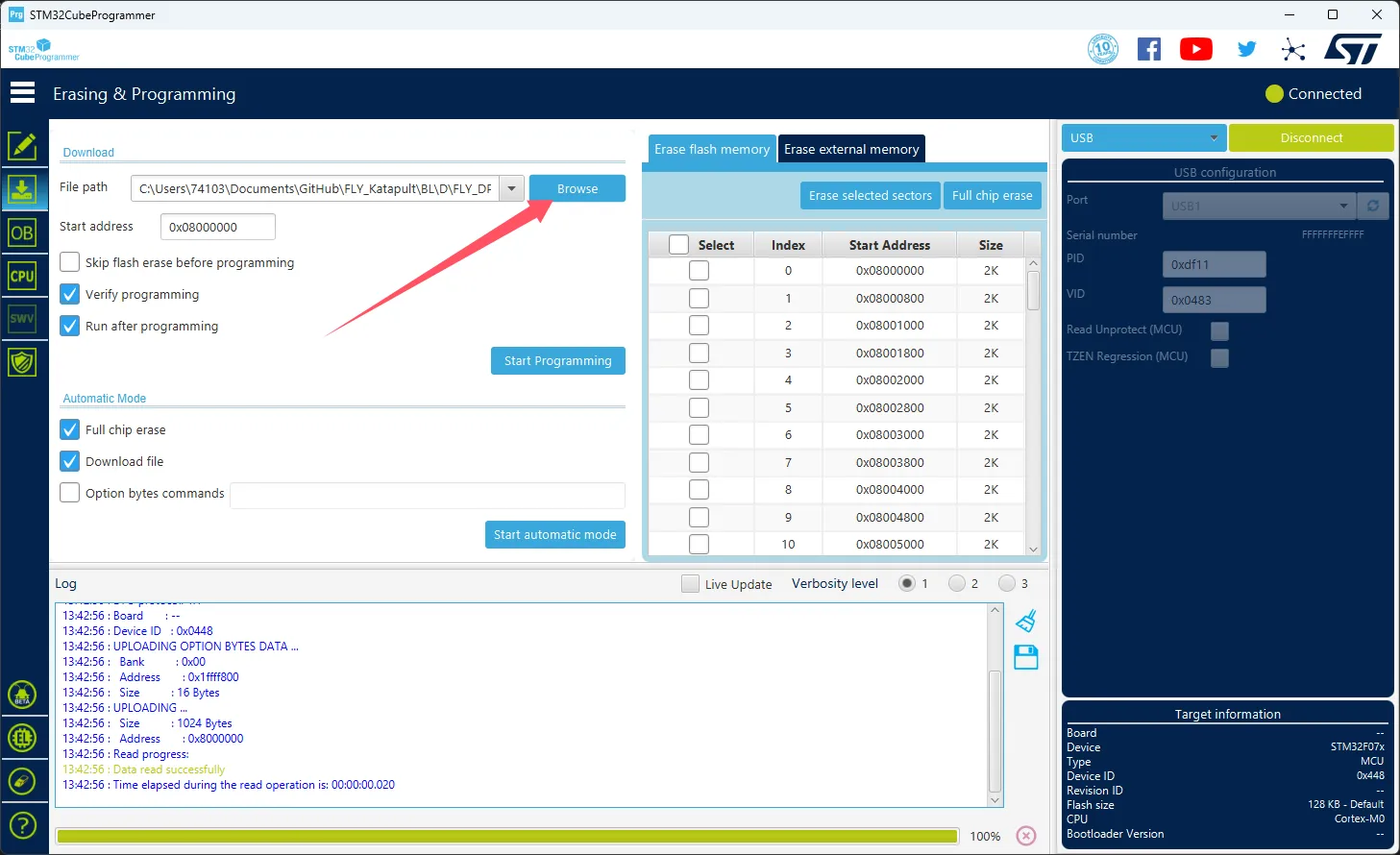
- Select
Start addressand enter0x08000000- Note: If the firmware is in
HEXformat, skip this step!!
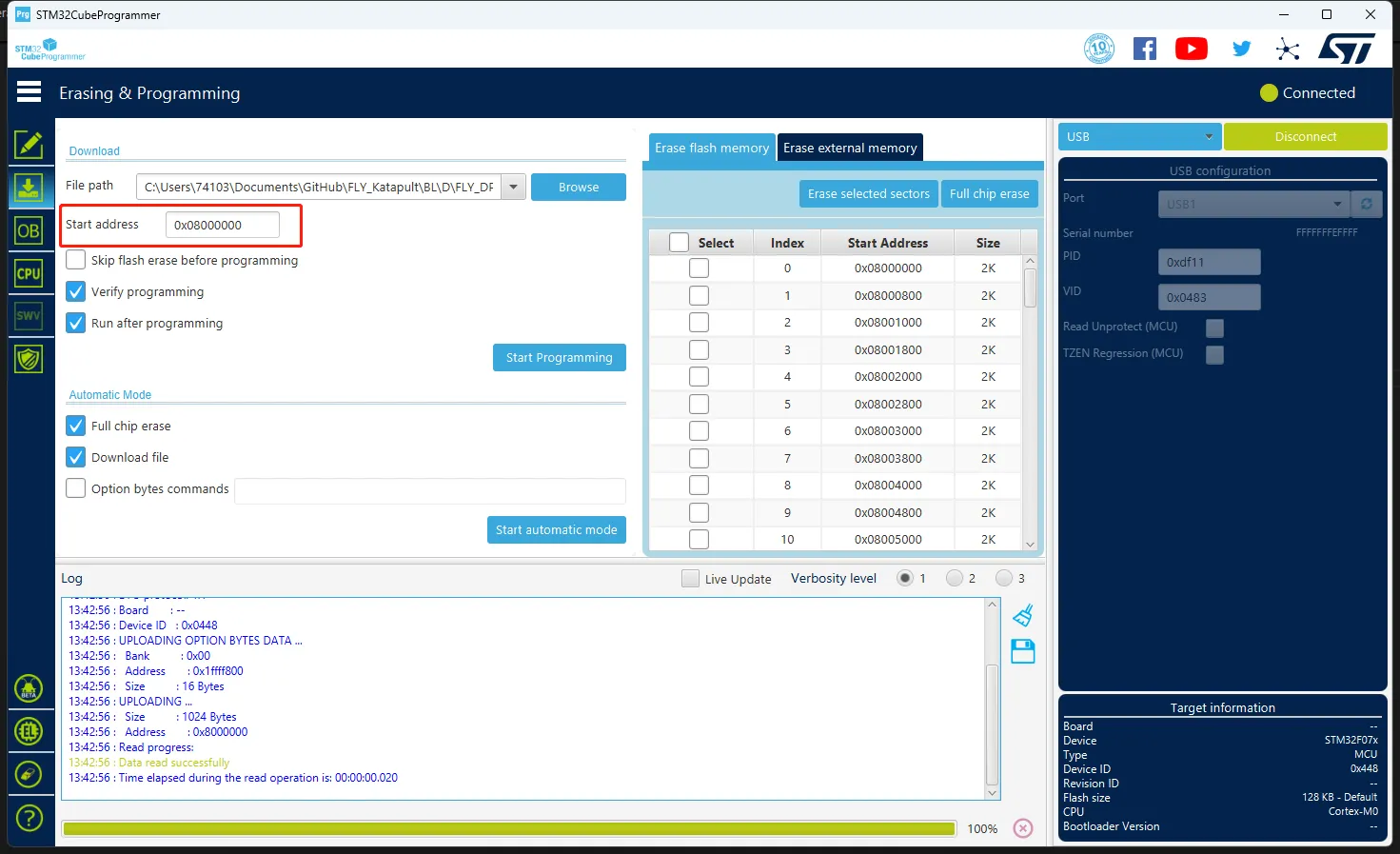
- Note: If the firmware is in
- Click
Start automatic modebelow to begin flashing the firmware
- The appearance of the message below indicates that the firmware has been successfully flashed
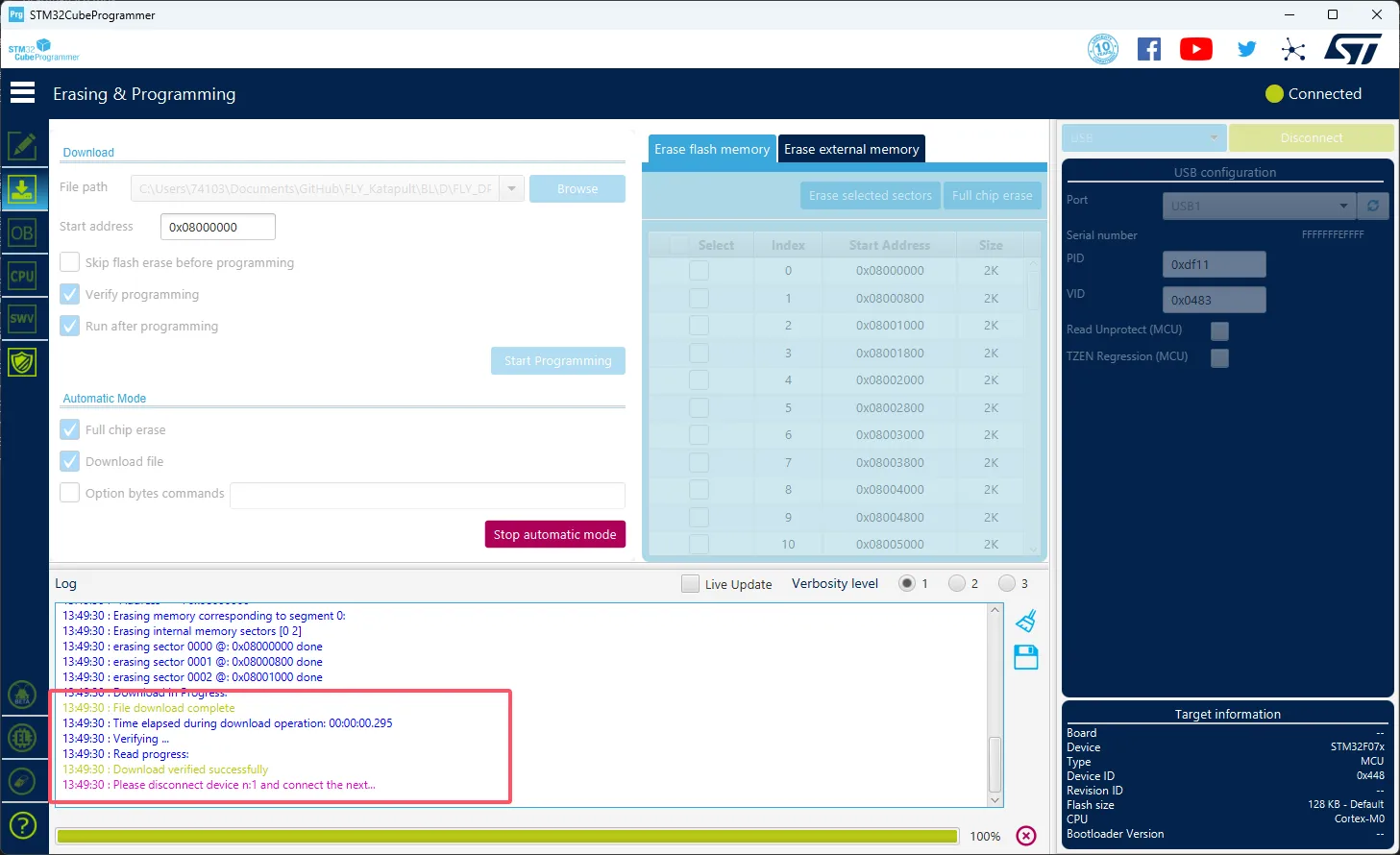
Loading...